(FOR MARKETPLACE USERS)
You can view session history and join upcoming sessions on your Bookings page.
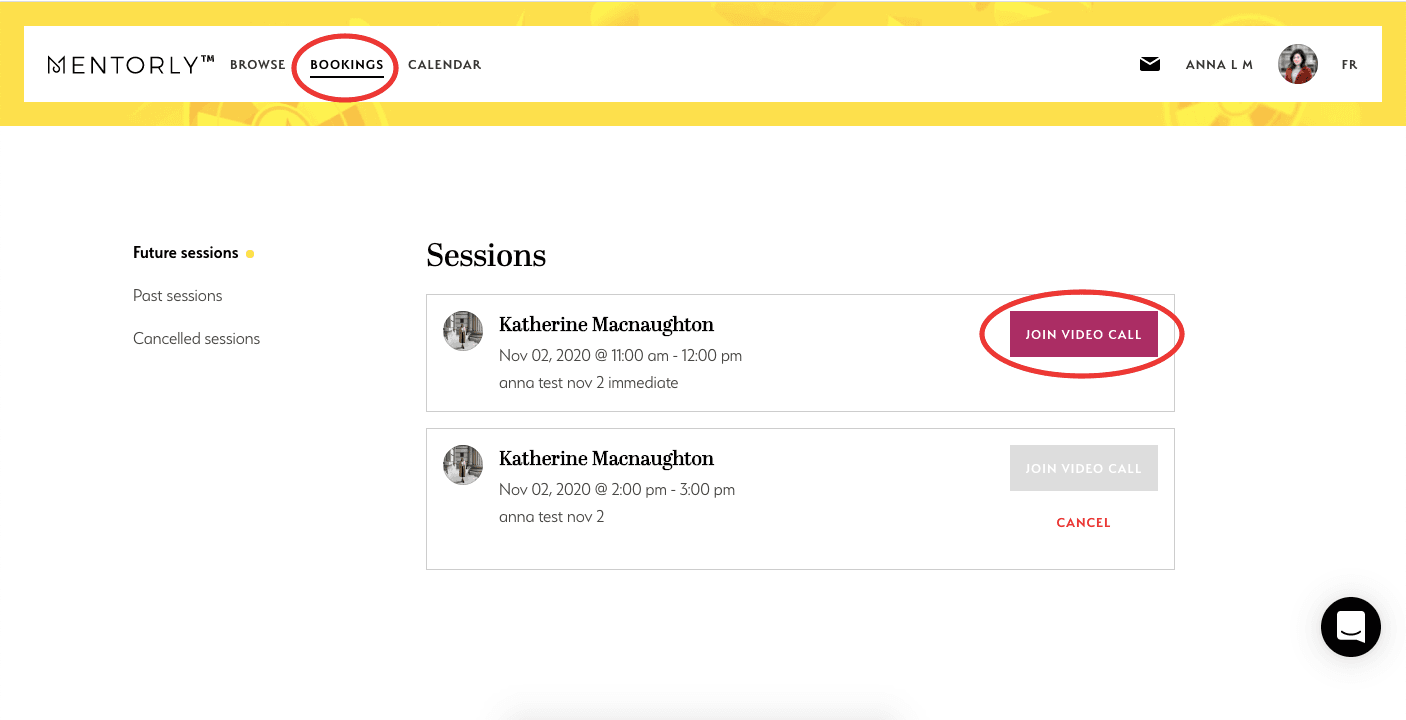
The JOIN VIDEO CALL button below will activate 10 minutes prior to your session starting.

If you're rejoining a session, please be sure to refresh your browser prior to clicking on the JOIN VIDEO CALL button.
Hosted on Zoom? Mentors can host their sessions on their own Zoom account instead of Mentorly Video. If your session is hosted on Zoom, the session page shows Join on Zoom, which opens the meeting in a new tab. The chat, screen share and file upload below are Mentorly Video features; on Zoom you use Zoom's own tools. See Using Zoom for your Mentorly sessions.
Don't forget:
-
You can chat, screen share, and upload files during your video call.
-
Sessions countdown 10 minutes prior to the end of the call and automatically close. Keep an eye on the ⏰ !
-
You can flag 🚩 a call in the case you want to signal a problem to Mentorly.